Make a map from the cable to the app
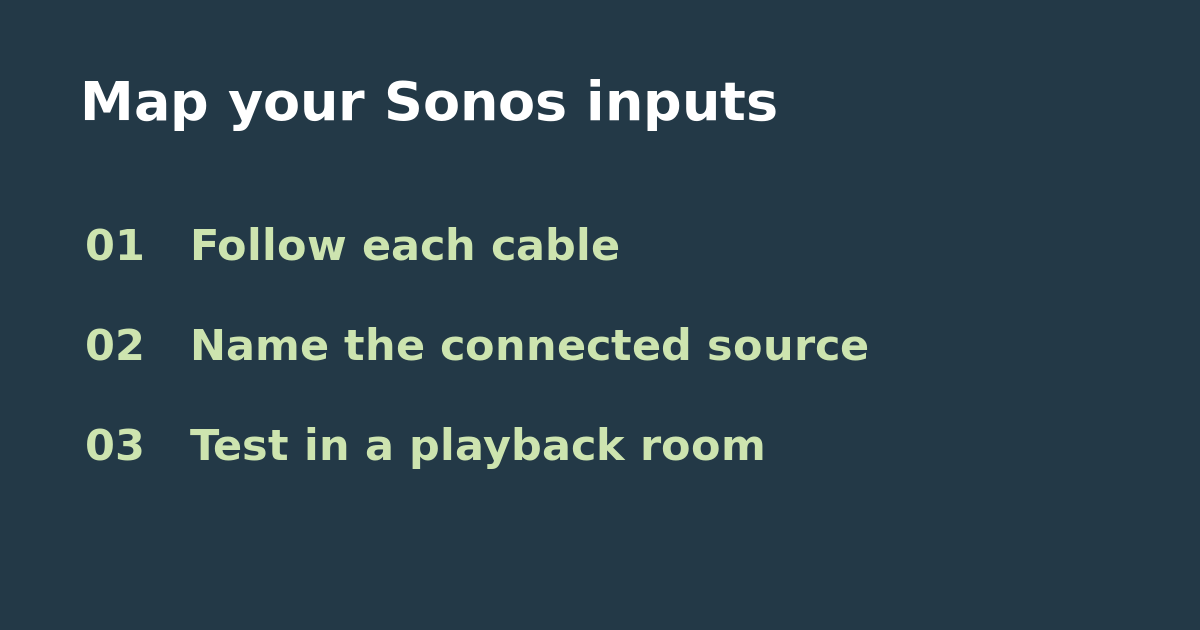
When two Sonos devices have analog inputs, the room you want to hear and the device receiving the cable are not necessarily the same. Follow each cable to the Sonos product it enters. Write down three things for each input: the connected device, the room where the cable lands, and the room where you normally listen. For example, a turntable might connect in the den but usually play in the living room. Naming both ends just Living Room makes that setup harder to troubleshoot.
Rename one source and test before touching the other
Sonos documents a Source Name control in the Line-In settings for the product that has the connection. In the settings for the port you traced, choose a name that identifies the physical feed, such as Den Turntable. Leave the second input unchanged for now. At modest volume, play a recognizable passage from the turntable while the other source is silent, select the renamed input from your intended listening room, and check whether the passage plays. Then repeat the process with the second port, using a clearly different source and name. Keep autoplay and source level unchanged during the comparison.
Use the result before replacing hardware
If both names play the expected devices, put matching labels on the cables or keep a short note in the app setup folder. If a name appears but plays the other device, recheck the physical map before changing any levels. If the correct source plays manually but starts in the wrong room by itself, the name is not the issue: check autoplay destination separately. If the exact physical feed still does not play, test it in its local room before assuming a remote speaker or another adapter is needed.
References and next check
See the Sonos Line-In settings documentation. If manual selection works but automatic playback goes elsewhere, see the Line-In autoplay destination check.