Isolate the room that drops out
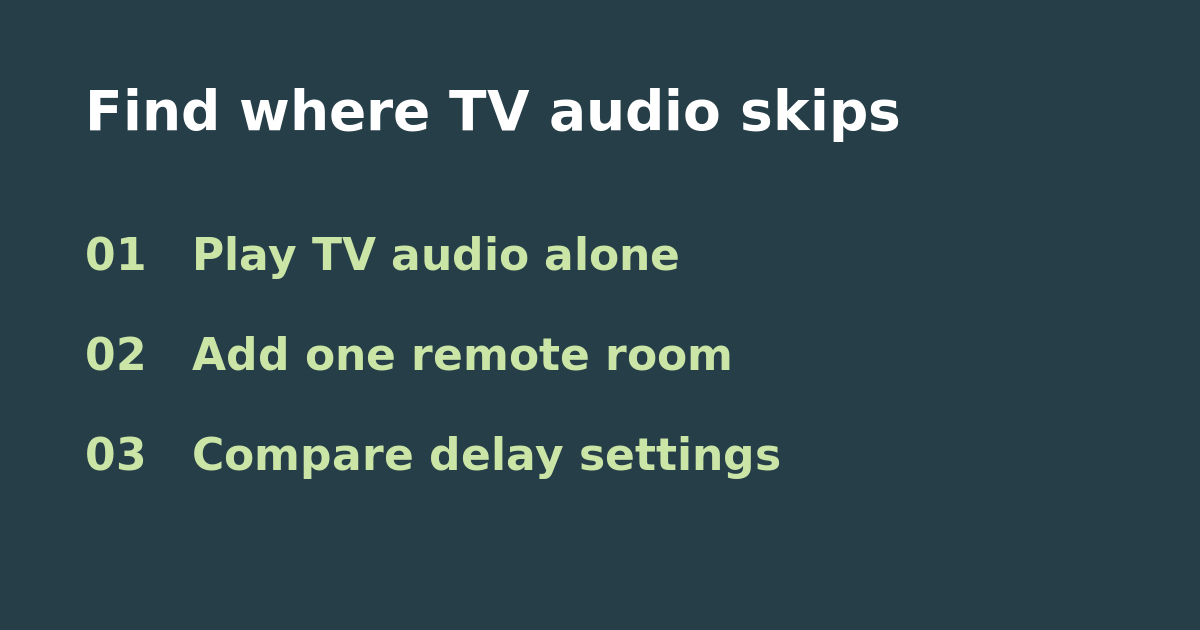
Pick a two-minute section of a show with steady speech. Play it with only the home theater room selected and note any gaps. Then group just the room where you noticed skips and replay the same passage. If both rooms drop out even when the theater is playing alone, this test has not isolated a grouping problem. Check the source and theater playback first. If the theater plays cleanly but the grouped speaker cuts out, keep that speaker as your only extra room for the next trial.
Adjust one delay setting, not two
Sonos’s Group Audio Delay setting adds delay between the television room and the rooms grouped with it. Sonos recommends trying it for group playback interruptions when picture-to-sound timing in the other room is not critical. Note your original setting and try the next available delay option under the home theater settings. Replay the same clip, at the same volume, and count interruptions in the grouped room. If you can hear both rooms from a hallway, pause there and check whether the extra separation is distracting. Leave TV Dialog Sync unchanged so the comparison isolates the group setting.
Let the listening conditions decide
If the extra room plays cleanly and listeners there cannot see the TV or hear the theater speaker, the delay may be a good tradeoff. If the rooms overlap acoustically or share the screen, accept fewer grouped rooms rather than keeping a delay that makes speech distracting. If changing Group Audio Delay does not help, restore the original value and compare the same grouped room with music. Music that also cuts out is a reason to investigate that room’s connection, not evidence that the TV needs a cable or a replacement speaker. Retest any change with the rooms you ordinarily group.
See Sonos’s official guide to interrupted grouped TV audio. For speech that does not match the picture in the theater room itself, use the TV lip-sync source comparison.