Adding someone to Google Home is an access decision, not just a way to make a light switch appear on another phone. Decide what the person needs to do before choosing a role or enabling extra permissions.
Start with the actual task
Write a plain-language requirement: control shared lights, review camera activity, change household settings or help manage the home. These are different responsibilities.
Google’s people-and-permissions guidance distinguishes Admin and Member roles and describes optional Activity and Settings access for members. Read the current permission table for your household’s devices rather than assuming the role name answers every question.
Review sensitive capabilities
Check who can see relevant activity, change device settings, manage people or alter home-wide configuration. Some effects depend on the Nest devices or subscriptions present.
Do not grant broad access simply because one person needs a single convenience control. If the platform cannot provide the desired narrow scope, understand that limitation before sending an invitation.
Invite the intended account
Confirm the person’s actual Google account address directly. A familiar display name does not prove that an address belongs to the intended household member.
Let the recipient accept from their own account. Do not share your password or sign your account into another person’s phone as a substitute for supported household sharing.
Verify from the recipient’s view
After acceptance, check the intended action and review any unexpectedly visible devices or activity. A successful invitation does not establish that permissions match your original requirement.
In a hypothetical example, a person who only needs to adjust common-area lighting may not need settings or camera-activity access. Check the available controls and documented role boundaries rather than assuming those capabilities are all bundled.
Review access when arrangements change
Keep a private record of account, role, optional permissions, purpose and review date. Revisit it when someone moves out, a camera is added or responsibility for managing the home changes.
Removing a home membership should not be treated as proof that every other access path is gone. Check separate manufacturer apps and services where relevant. Use each service’s supported controls rather than assuming one app governs all accounts.
Keep device sharing separate from ecosystem linking
Inviting another person into your existing home differs from adding a Matter device to another platform. Our Matter multi-admin guide explains that second task.
For storage-related context, see the camera storage guide. Permission decisions can affect who sees those recordings.
Official guidance checked November 5, 2026. This is an access-planning workflow, not a guarantee of identical permissions across every app version, account type or device.
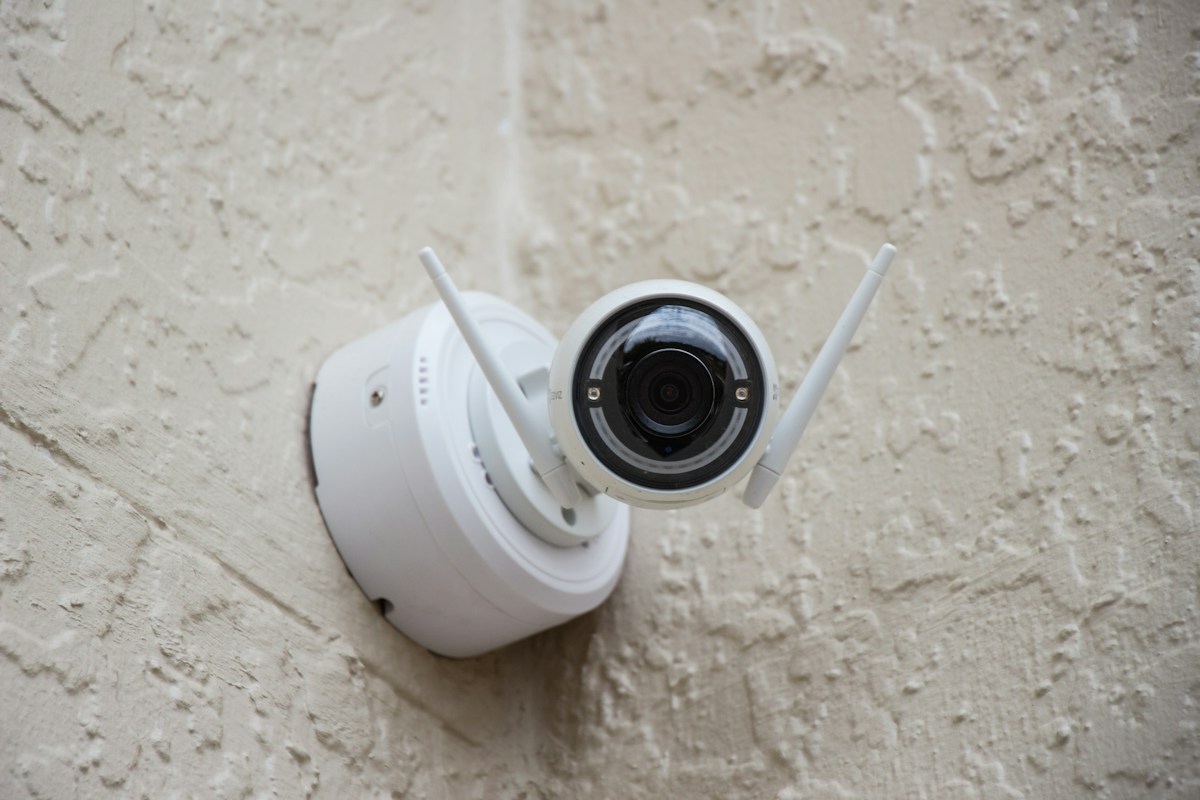
Photo: Alan J. Hendry on Unsplash. Illustrative stock photograph, not a tested installation or endorsement.