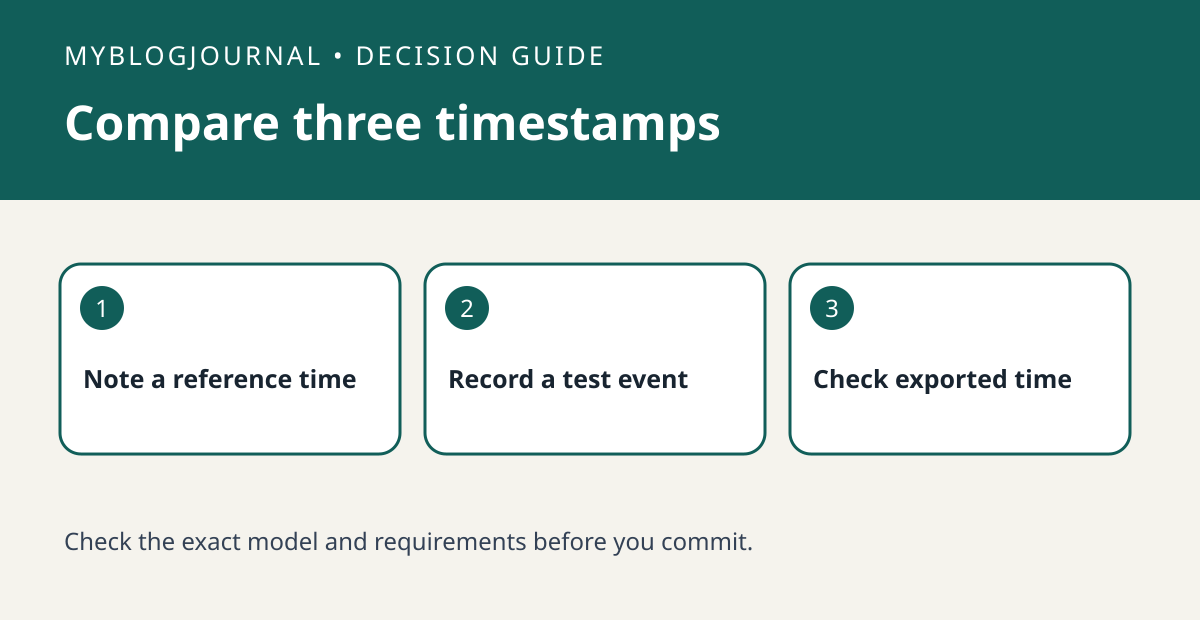
If a Reolink clip appears under the wrong time, compare a fresh event with the camera clock and the playback view before changing recording schedules.
Set up a controlled test
Choose a nonprivate scene and note the local time and time zone from a trusted device. Create one short event, then write down the time shown in playback. If the video has a timestamp overlay, record that separately; a label drawn into a frame is different from the app’s display.
Read the result
Check the model-specific time settings described by Reolink, including the time zone where exposed. On a recorder setup, identify which interface controls the clock you are seeing. After any intentional change, create a new event; don’t assume old overlays or filenames will change.
Worked example
If a test made at 7 p.m. shows 6 p.m. in both the overlay and playback, check the device time settings first. If the overlay is correct but playback is not, keep the two observations separate when troubleshooting.
Documentation and next step
See the manufacturer’s instructions for supported settings. For a related decision, see reolink nvr usb export playback before drive buy.