Separate app-off from loss of power
A Hue lamp that looks off in the app may still have power. A lamp whose ordinary switch is off has lost power at the bulb. Those are different starting points. Philips Hue documents a Power-on behavior feature on supported lights. Before replacing bulbs that wake up after a power cut, check the per-light setting in the Hue app and confirm it is available for your exact bulb and setup.
Test one nonessential lamp in two states
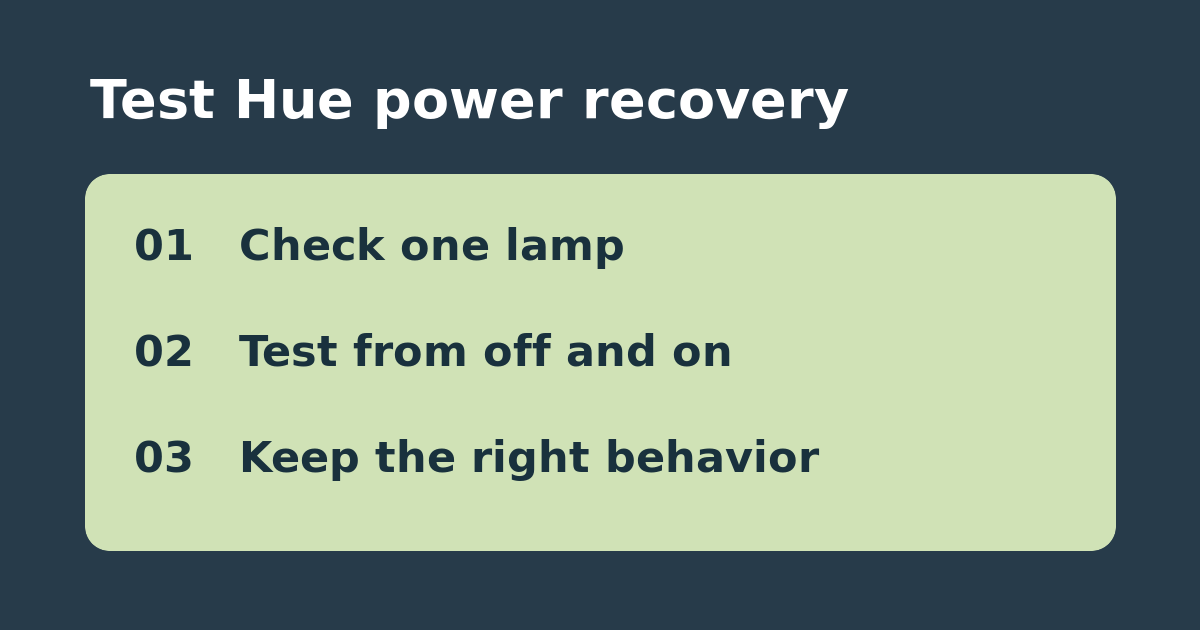
Use a lamp with an ordinary on/off switch; do not use a breaker or interrupt essential lighting. With the lamp powered, turn the bulb off in the app. Turn the ordinary switch off, then back on once. Note whether it stays off or lights up. Once the bulb reconnects, set it to a recognizable dim level and repeat the same power cycle. Note whether it returns dim, uses another brightness, or stays off. Leave other lights and routines unchanged, and avoid rapid repeated switch cycling.
Choose the behavior for the person using the switch
If your main concern is a bedroom lighting up after a short interruption, an app-off recovery test is the useful one. If someone expects the ordinary switch to bring the lamp on without a phone, verify that behavior before choosing a setting that restores the previous state. Note the old setting, change only that bulb, and repeat both tests. If the result meets both needs, keep the existing bulb. If the setting is absent or unsuitable, check compatibility before buying and remember that an unpowered smart bulb cannot respond to an app command.
See Philips Hue lamp release notes. For an outlet controller rather than a smart bulb, use the smart-plug power recovery test.