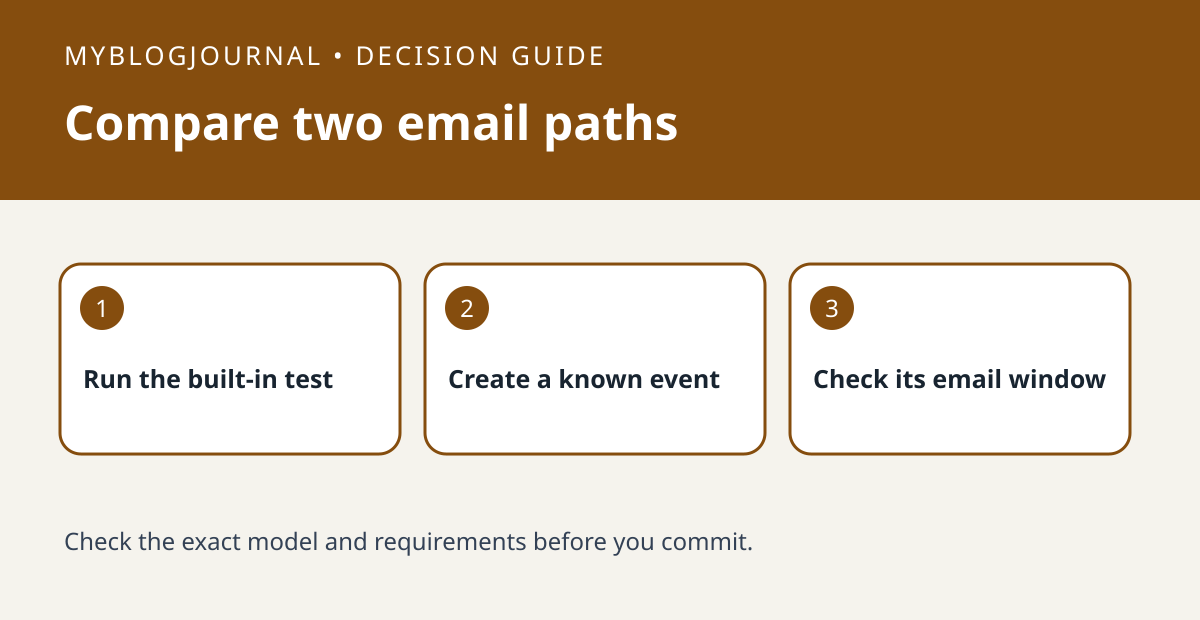
A successful Reolink test email does not establish that a camera event is configured to send email. Compare the test message and a real event before replacing hardware.
Set up the test
Follow the documented workflow for your exact camera or recorder and send a built-in test to an address you control. Do not share mail credentials. Note the message time and verify delivery, including the spam folder if needed.
Interpret the result
During an intended alert window, create a nonprivate event and check whether the system recorded it. Compare the relevant camera channel, event type and email schedule. If the event never appears, diagnose detection first. If the built-in test fails too, investigate email delivery before changing motion settings.
Worked example
A test message at noon and a saved motion clip at 7 p.m. prove two different things. Check that the evening event matches the configured email window before treating the camera as defective.
Documentation and next step
See the manufacturer’s instructions for supported settings. For a related decision, see reolink nvr push schedule vs recording test.