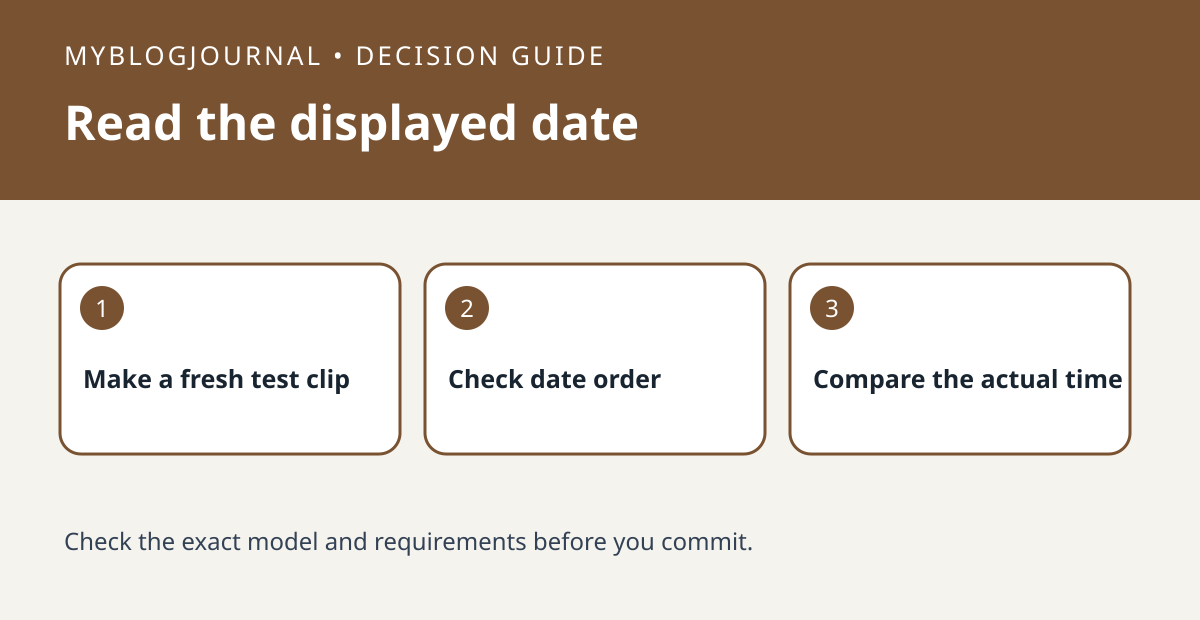
If a Tapo timestamp seems wrong, check whether the day and month are reversed before changing the camera’s time settings.
Set up the test
On a supported model, review the Timestamp Format option in the Tapo app. Record a short event in a nonprivate scene. Compare the displayed date order and clock time with a known local reference; use a day after the twelfth when possible to make the date order unambiguous.
Interpret the result
Change only the display format if the underlying time is right. Make a new clip and verify the overlay. If the clock time itself is wrong, investigate time settings separately rather than expecting the display format to correct it.
Worked example
A date written as 11/23 and 23/11 can mean the same day. A time that is one hour behind is a different problem. Keeping those observations separate avoids unnecessary settings changes.
Documentation and next step
See the manufacturer’s instructions for supported settings. For a related decision, see reolink camera clock vs export timestamp check.