Changing a router can leave several smart-home devices offline at once. Before resetting everything, separate the network change from each device’s reconnection process. The useful goal is a controlled move with a clear record of what has already been restored.
Identify what actually changed
Write down whether you replaced the router, changed the Wi-Fi name, changed its password or moved to a new home. Do not include passwords in a shared checklist or support screenshot. Keep account recovery information private and available before beginning.
Google’s official new-Wi-Fi guide says Nest and Home devices need reconnecting after credentials or the router change. It gives different procedures for speakers, displays, streaming devices, thermostats and other products. Use the branch for your exact device.
Start with the network
Confirm a phone or computer can join the intended Wi-Fi and reach the internet. If ordinary devices cannot connect, resolve that first rather than treating every smart device as broken.
Keep a simple inventory: device name, exact model, controlling app and account, location, manufacturer instructions and current status. Use separate statuses for “network available,” “device online” and “automation checked.” One successful step does not establish the next.
Move one representative device
For a supported Google speaker or display, Google’s documented app route uses the device’s network settings to forget the old network, followed by setup on the new one. Its guidance also identifies situations requiring a model-specific reset and setup again. Do not copy a speaker’s reset procedure onto a thermostat or camera.
Choose one nonessential device first and follow its current instructions. After reconnection, confirm basic control before moving on. If the old network is unavailable and the normal settings route cannot be used, consult the relevant reset instructions rather than repeatedly guessing button combinations.
Use this migration record
Copy these fields into a private note: device/model; instruction link; app account confirmed; reconnection action; device appears online; basic control works; room/name checked; related routine checked; unresolved error.
For example, a hypothetical living-room speaker might reconnect successfully while an evening routine still targets an old device entry. Record the device connection as complete and the routine as pending. Resetting the speaker again would not necessarily address that separate configuration question.
Check dependencies after reconnection
Verify the rooms, names and household routines you actually use. A device appearing in an app is not proof that every schedule or voice command works. Check one relevant action at a time and record any exact error.
If the issue concerns a Wi-Fi plug rather than a Google device, use our smart-plug setup guide. Guest networks can introduce separate restrictions; review guest Wi-Fi checks instead of weakening security to make a connection succeed.
Stop before an unnecessary reset
Save device-specific settings and note what a factory reset removes before proceeding. Follow the manufacturer’s process only for the identified model. Keep essential household systems under appropriate manual control while troubleshooting.
For buying context, see our budget smart-home guide. Documentation checked November 5, 2026. This is a planning workflow, not a hands-on test or a promise that every product can migrate without reconfiguration.
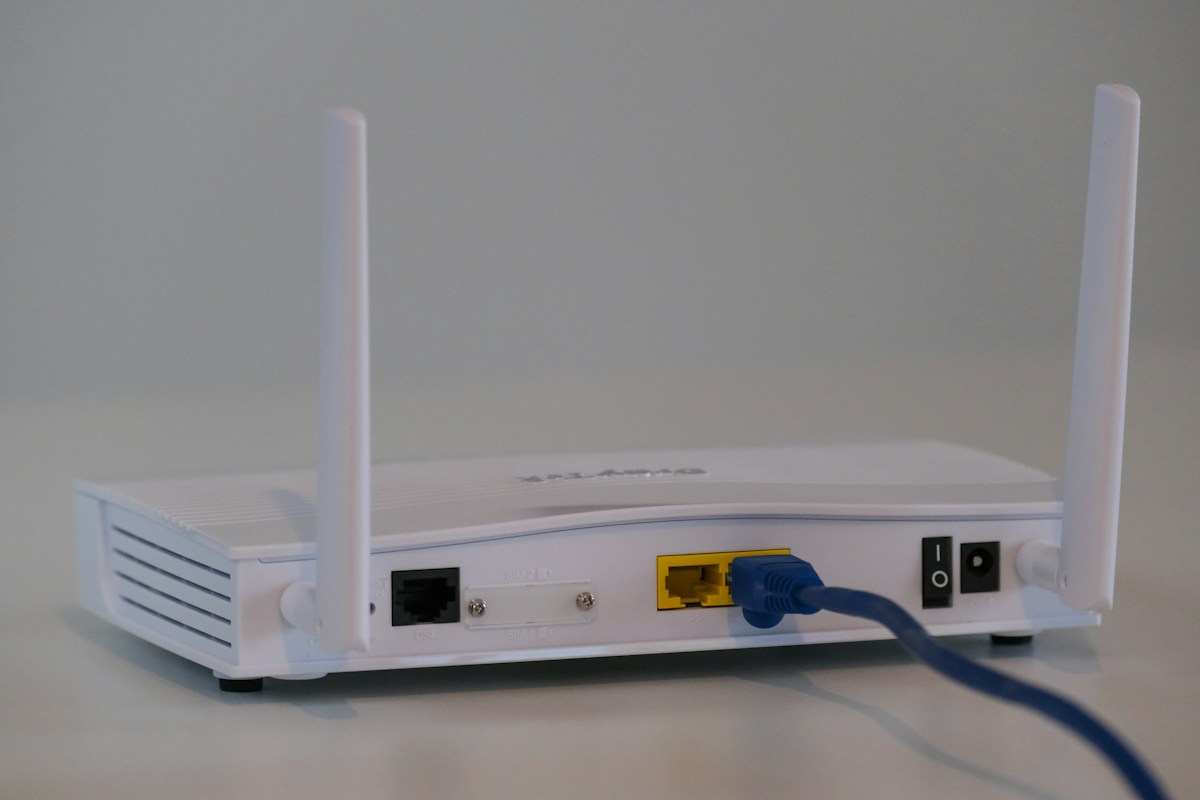
Photo: Compare Fibre on Unsplash. Illustrative photograph, not a tested installation or provider endorsement.