If a supported Nest thermostat stays at one setting past a scheduled change, check for an active temperature hold before rewriting the schedule.
Set up a comparison
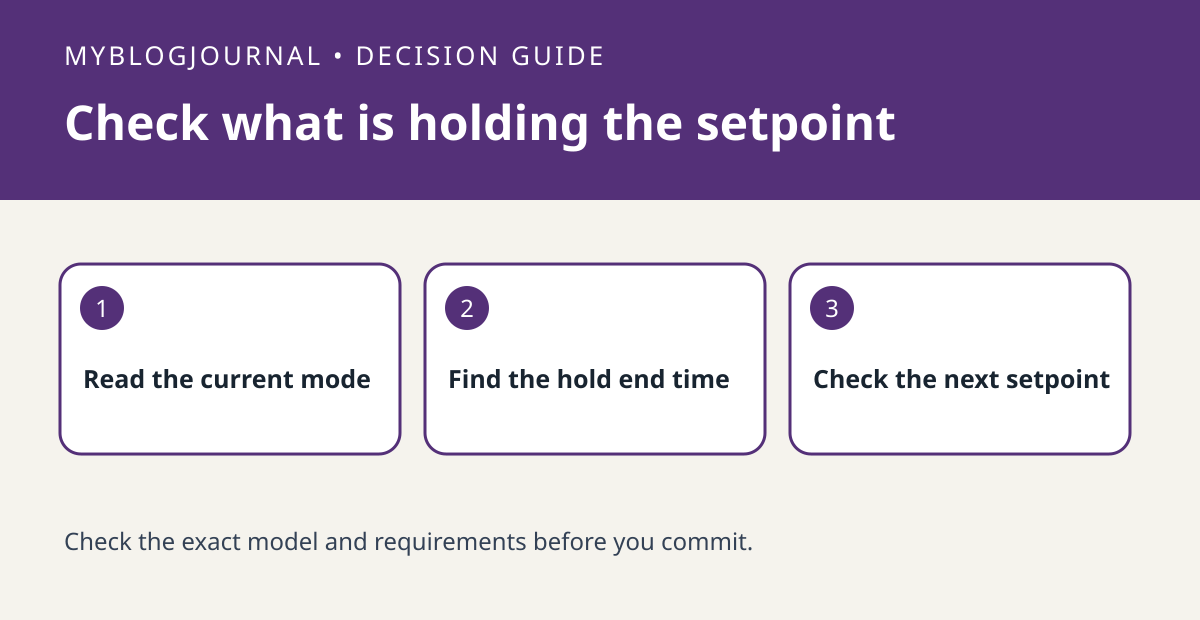
Identify the exact thermostat model first. Google documents the explicit hold workflow for the Nest Thermostat and fourth-generation Nest Learning Thermostat. In the Home app, check whether a hold is active and note its target and end time. Compare that with the next scheduled setpoint.
Interpret what happened
If the hold was intentional, keep it until the household wants normal scheduling back. If it was not, use the documented end-hold action rather than deleting future schedule entries. Then check the displayed target across the next scheduled change. Watch the setpoint, not the room temperature, which does not change instantly.
Worked example
For example, if the schedule calls for a different target at 8 p.m. but a hold ends at 10 p.m., the mismatch can be explained without changing the schedule. If no hold is active, document the actual mode and model before looking for another cause.
Documentation and next step
See the manufacturer’s instructions for supported settings and model requirements. For a related setup decision, see nest thermostat lock range local control check.