Ask for the feature you intend to use
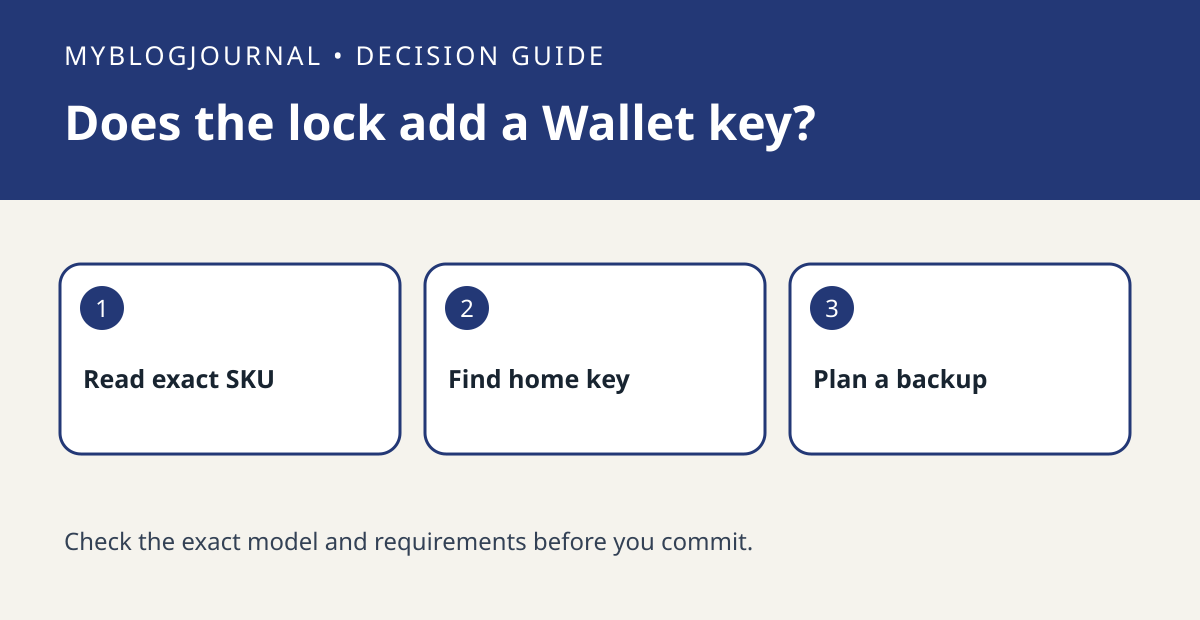
A lock appearing in the Apple Home app does not establish that it can add a home key to Apple Wallet. Apple explicitly distinguishes Home app compatibility from home key. If the job is tapping an iPhone or Apple Watch at the door, make that the acceptance criterion, not just seeing a lock tile.
Compare the exact listing to the manual
Write down the lock model and regional variant from the seller’s listing. Find the manufacturer’s explicit Wallet home key documentation for that variant. Put an app unlock, an access code and a Wallet key in separate columns; an advertised keypad or a Matter badge is not an answer to the Wallet column.
Decide how the household will unlock
Apple describes Express Mode and an authentication-required option on supported locks. Agree which behavior you want before setup, and keep a manufacturer-supported backup entry method. Confirm fit independently: software compatibility cannot fix a deadbolt that does not move freely.
Worked checkout comparison
Suppose both listings say Apple Home, but only one manufacturer manual explicitly documents home key for its SKU. Mark the other listing unconfirmed, even if it costs less. If app control alone meets the job, the cheaper option can remain on the shortlist. If tap-to-unlock is essential, do not pay for a product on the assumption that a firmware update will add it.
Related: Retrofit Smart Locks: Check the Deadbolt, Not Just the Door.
Primary documentation checked November 6, 2026: Apple’s home key guide. The examples are illustrative, not hands-on tests. Links are informational.