When a Blink schedule appears to run but one camera does not record, check the system’s arming state and that camera’s motion setting separately.
Set up the test
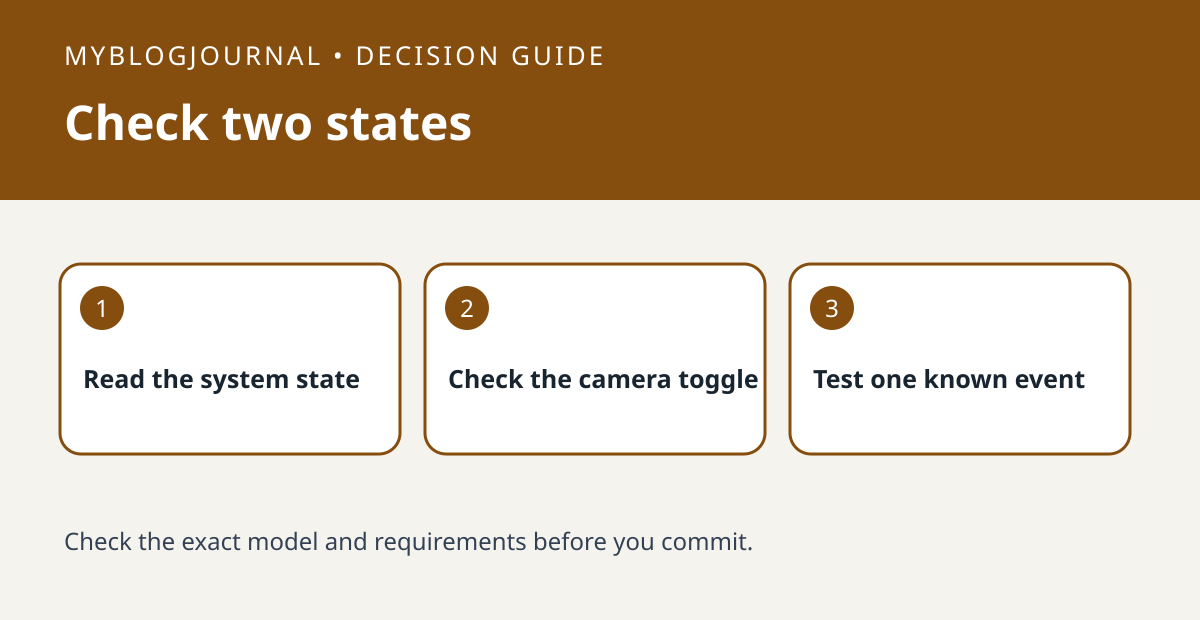
Write down which Blink system owns the camera. Check the scheduled arm time and the actual state in the app. In the same system, inspect motion detection for the camera that missed the event. Avoid changing the whole schedule just to test one device.
Interpret the result
During a normal armed window, create a known event in a nonprivate scene. Compare the saved clip with the event time. If another camera records but this one does not, check the individual camera’s setting and detection area before buying another sync module.
Worked example
For example, if your two cameras belong to one system and only the driveway camera misses a test, first verify that motion detection is enabled for the driveway camera. The schedule alone is not proof of each camera’s state.
Documentation and next step
See the manufacturer’s instructions for supported settings. For a related decision, see blink retrigger time test two motion events.