Test the saved file, not only what you see in the app
A clip can play with enough detail on your phone but look softer in the file you exported. Reolink’s app download instructions say downloads default to Fluent unless you select Clear where supported. Before changing the camera’s recording settings, check what was actually written to the phone and whether the lower-detail copy is sufficient for the task.
Hold the scene and duration constant
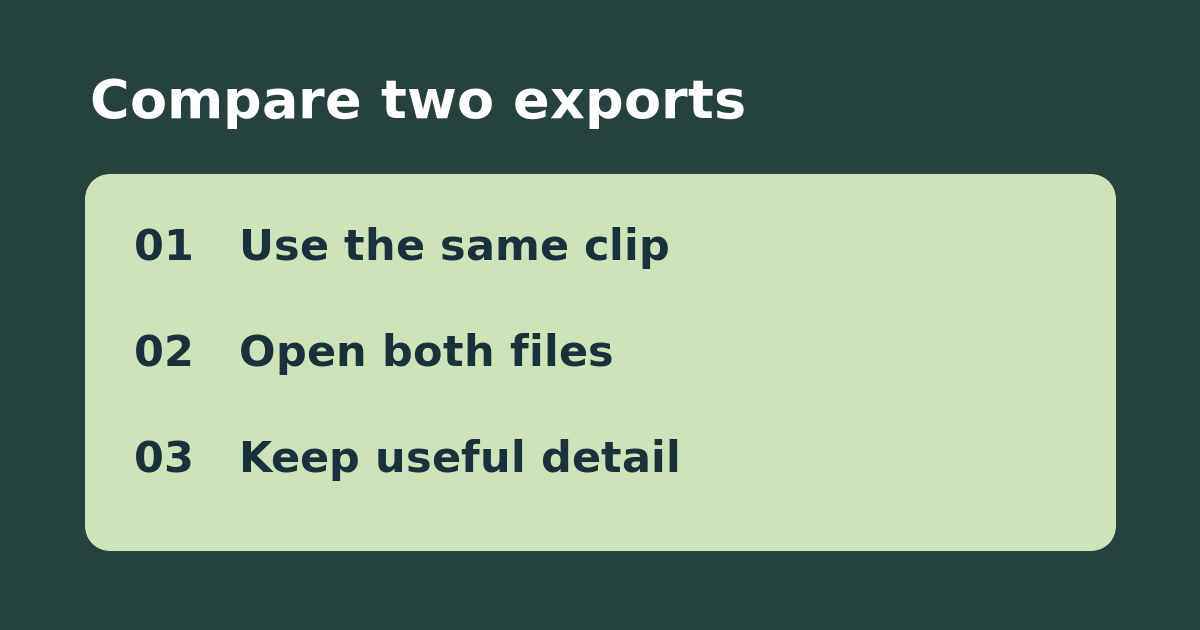
Pick a short recording you are allowed to use with one ordinary detail, such as a box label on your own porch. Open playback on the correct camera and storage destination. Download the same time range in Fluent, then switch to Clear and download again if offered. Name the two files so you cannot confuse them. Open both outside the camera app, compare the same paused moment at the same zoom, and note file size and whether the detail is readable. Do not post the recording online just to compare it.
Interpret the difference before spending
If Clear helps, use it for clips where detail matters and keep Fluent for a quick overview when it suffices. If both files look poor at the same moment, compare the original recording in Clear playback: a higher-quality export cannot recover detail that was never captured. If Clear playback is good but a downloaded file will not open on the destination device, verify playback compatibility before blaming the camera. Restore any app preference you changed and keep the working copy.
See the manufacturer’s instructions. Related: verify a clip actually downloaded to your phone.