If a Google smart speaker refuses a familiar request only at certain hours, check whether Digital Wellbeing Downtime applies to that device before replacing it.
Set up a controlled test
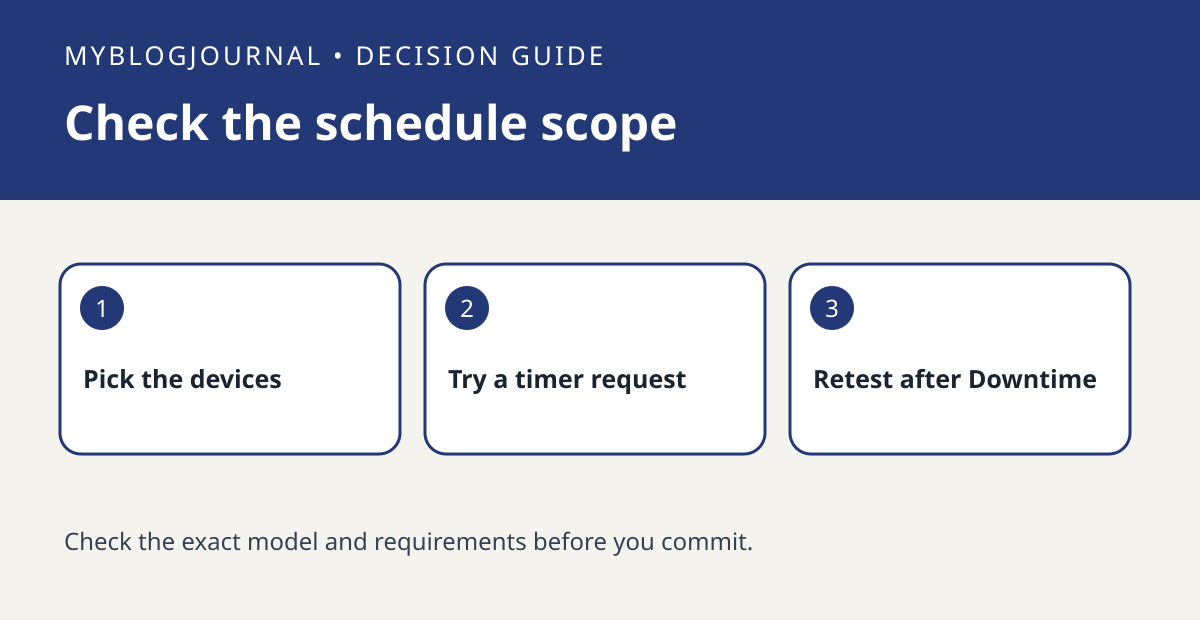
Ask the household manager to review the Downtime schedule and selected devices in Google Home. Note the device, day and time. Use an ordinary request without personal information and compare the same request on the same speaker inside and outside the scheduled window.
Read the result
If another speaker behaves differently, check whether it was selected for the same schedule before treating one device as faulty. Keep account restrictions intact; this is a scope check for the household manager, not a way to bypass the controls.
Worked example
If a living-room speaker behaves as expected during the day but refuses the same supported request every evening, compare that timing with the household schedule. A timing match is a reason to review configuration before spending on new hardware.
Documentation and next step
See the manufacturer’s instructions for supported settings. For a related decision, see google nest guest mode vs turning off personal results.