A Govee light appearing in the phone app does not prove it will perform the PC-sync job you want. Before buying a second light for a desk setup, check the exact model and the connection required by the intended Govee Desktop feature. This avoids buying hardware to solve what may be a support or network mismatch.
Write the feature before choosing the product
Separate ordinary on/off control from Movie-Watching/Gaming DreamView, Music DreamView and Razer Chroma Connect. Govee’s desktop guide distinguishes basic control from these advanced lighting functions. It says basic control can work with a normal Wi-Fi or LAN connection, while the named advanced features require a working LAN connection.
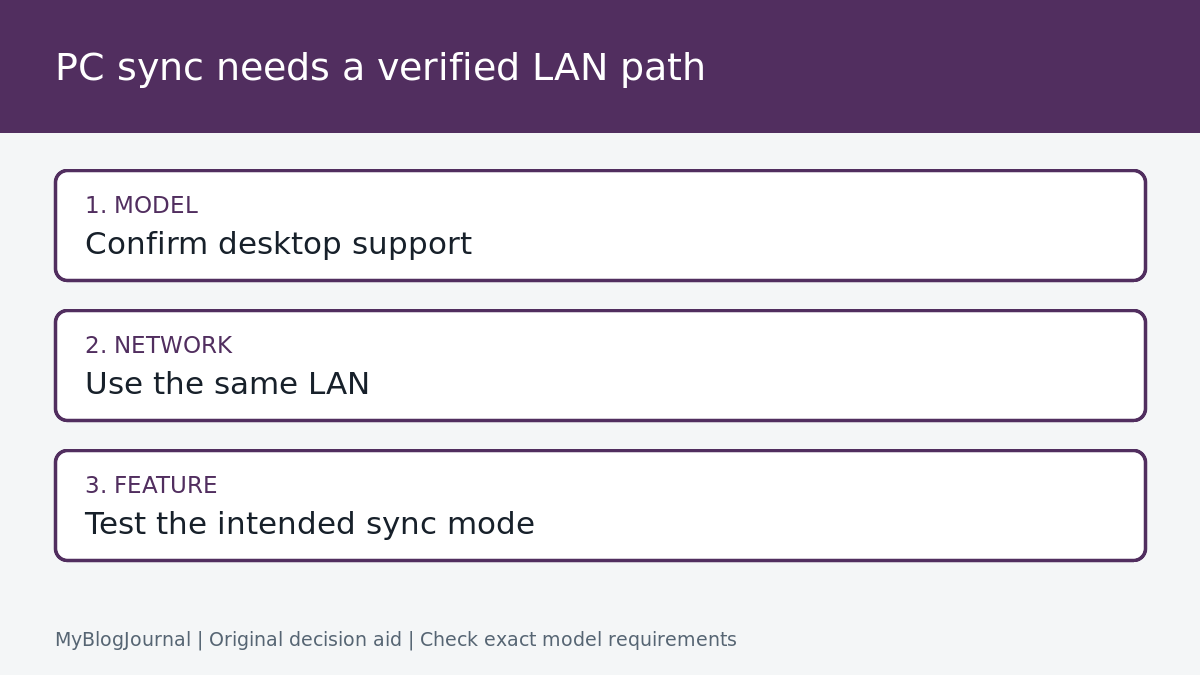
The guide calls for supported lighting devices already added to Govee Home on Wi-Fi, LAN Control enabled in the device settings, and the computer and devices on the same LAN. Its supported-PC-device list is the compatibility authority; a similar marketing name, colour count or Bluetooth connection is not a substitute for the exact model.
Create a three-column compatibility note
Use one row per light. In the first column put its exact model code from the product or device settings. In the second put the intended desktop feature. In the third record the official support result and whether a LAN Control switch is visible. Mark an unverified item ‘unknown,’ not ‘probably supported.’
For an existing light, first confirm ordinary phone-app control. Then check its LAN setting and desktop-device appearance. Note the separate Wi-Fi and LAN connection indicators for lighting. A device that is visible but LAN-disconnected has not passed the advanced-feature check.
Test the network without weakening it
Use the same trusted local network for the supported computer and light. Guest networks and isolated network segments can prevent devices from communicating even when both have internet access. Do not disable firewall protections, expose ports to the internet or merge an untrusted network just to make a test pass.
Run one desired desktop feature with one existing supported light. Record the selected feature, connection indicators and visible result. Stop if your light is unsupported rather than repeatedly reinstalling apps. If it is listed but the expected setting remains absent, consult Govee’s current support guidance for that model.
Buy for the verified result
Suppose phone control works, the light appears on Desktop, but its LAN indicator is disconnected and gaming sync fails. That is a network-path investigation, not evidence that you need a brighter light. Conversely, a model absent from the supported list should not be bought specifically for the desktop feature without manufacturer confirmation.
After a successful one-light test, compare the total cost of the expansion: lights, power supplies, mounting and any space needed behind the display. Check whether the exact intended effect can include every proposed model. Keep a manual lighting option available when the computer is off. This guide makes no latency, colour-accuracy or hands-on performance claim; the purchasing decision rests on a model and feature match.
Manufacturer documentation checked November 18, 2026: official requirements and instructions. This article is based on documentation, not firsthand testing. Features, availability and requirements can change; verify the exact regional model before purchasing.
Related: check guest-network limits for smart-home devices. These links are informational; no affiliate earning arrangement is claimed.