A LIFX bulb that turns on by schedule but never turns off may not need replacement. First check whether the schedule contains the events you expect and whether its cloud-dependent path is available. A working local control tap does not prove that every scheduled function is ready.
Understand what one schedule means
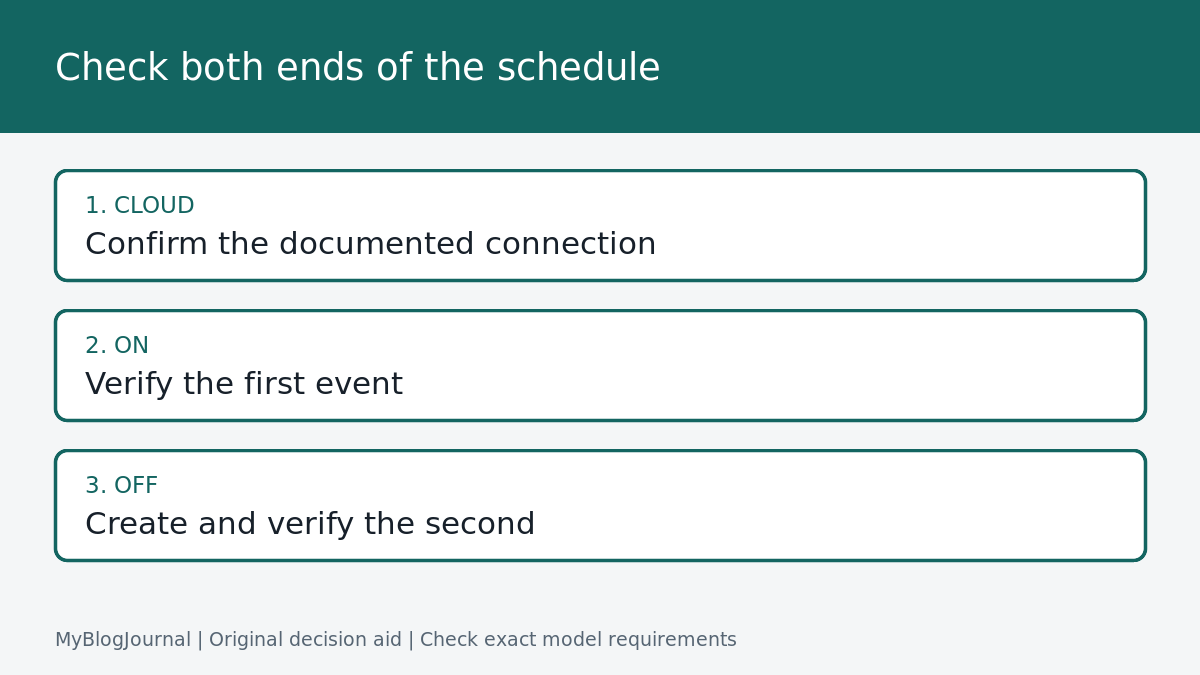
LIFX’s scheduling guide says a schedule is a single message to the light. To turn a light on at one time and off at another, create two separate schedules. The power choices include Turn On, Turn Off and Leave Unchanged; that last option keeps the current power state while changing supported settings. The guide says lights should be cloud-connected before creating schedules.
LIFX’s cloud requirements document separately identifies internet access and supported network conditions for running schedules and integrations. This article addresses schedules created in the LIFX app, not every possible third-party local automation. Do not apply one app’s dependency assumptions to another system.
Audit the existing pair before rebuilding it
Write down the name, time, selected light or group and power action for each event. A useful pair might be ‘reading lamp on’ and ‘reading lamp off.’ If there is only an on event, the missing off event is a configuration gap, not evidence of a faulty bulb.
Check the target as carefully as the time. An event aimed at a whole group may affect more lights than intended; an event aimed at an old light name may miss the current task. Note any sunrise or sunset timing separately from a fixed clock time so you do not test against the wrong expectation.
Run a short, visible test
Save the original settings first. With a harmless lamp and normal network access, create a clearly named temporary on event followed by a separate off event. Observe both transitions and record which one succeeds. Keep other automations from deliberately controlling the same light during this comparison where practical.
If neither event runs but local app control works, inspect the documented cloud connection and account setup. If the on event works and the off event does not, compare the second event’s time, target and selected power action. Avoid resetting the bulb or purchasing a second one before those differences are understood.
Do not weaken the network to make a schedule pass
A managed, guest or isolated network may need review by its administrator against the manufacturer’s requirements. Do not expose device ports to the public internet, disable security protections broadly or remove household safeguards as a casual troubleshooting step. Ask for a supported configuration when restrictions are intentional.
After the test, remove or disable the temporary events and restore only the intended production pair. Verify that the extra test events no longer appear active. Otherwise a diagnostic on/off cycle can become the next unexplained lighting problem.
Make the replacement decision from the result
Record the exact model, controlling app, two event settings and last successful stage before contacting support. Replace hardware only when the evidence supports a hardware problem or an unsupported required function. This procedure makes no promise of outage reliability, measured response speed or savings; it is a way to establish whether the existing bulb can perform the scheduled task you actually configured.
Manufacturer documentation checked November 18, 2026: official model requirements and instructions and additional manufacturer guidance. This is documentation-based guidance, not firsthand testing. Check the exact regional model and current availability before purchasing.
Related: distinguish local control from internet-dependent functions. Links are informational; no affiliate arrangement or earnings are claimed.