Test the kind of audio you actually need
A speaker that works for streaming video may not receive every sound from an Apple TV 4K. Apple distinguishes temporary output to an AirPlay speaker other than HomePod from the default audio output. When that temporary route is selected, Apple says game sounds and system alerts still use the default output. If the purchase is for a game room, a successful movie test alone is not enough.
Map three sounds with equipment you already have
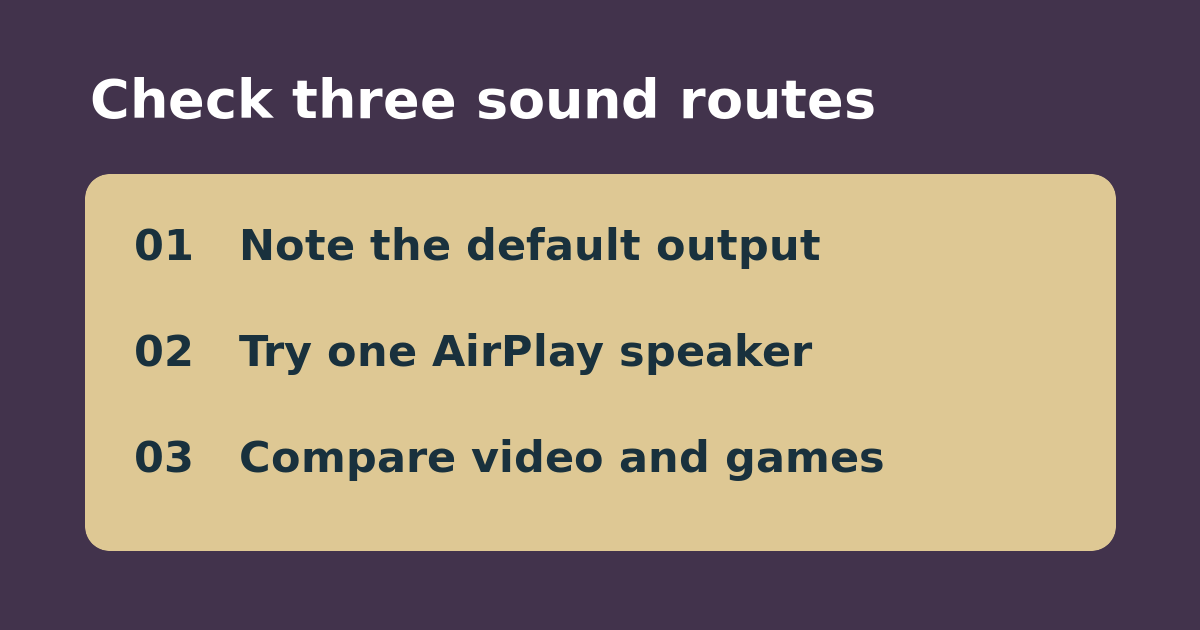
Write down the current default output and set both speakers to a modest volume. Play a short video, start a familiar Apple TV game, and note where any system alert you can safely reproduce is heard. Select the existing non-HomePod AirPlay speaker as a temporary output and repeat the same checks. Keep a three-row note for video, game, and system sounds, recording which speaker actually played each one. Do not use sound from a separate HDMI console as a substitute for an Apple TV game.
Buy only if the desired route is supported
If video reaches the temporary speaker but games stay on the default output, the result matches the documented limitation; do not replace a working AirPlay speaker for that reason. If the purchase is mainly for movies, test a second streaming app and decide whether selecting the temporary output is convenient enough. If all audio needs to reach one destination, verify the supported default-output setup for the exact hardware before buying. Restore your original output when done.
See the manufacturer’s guide. Related: compare dialogue and loud-sound settings on Apple TV.