A Gmail label can connect related messages without requiring every topic to live in a separate folder. Start with one category you actually need to retrieve. A small, understandable label system is easier to maintain than a large set built before you know how you will use it.
Create the label
In Gmail on a computer, find Labels on the left and choose Create new label. Enter the name and select Create. Google also offers nesting under another label when you want that structure.
Apply it to selected messages
Check the box beside the intended email, select Labels at the top, and choose the label. Google notes that a message can have multiple labels and that selecting a label in the left panel finds its associated messages.
Choose wording you will remember
Use a recognizable project or subject name. Avoid several labels with nearly identical meanings, such as “pending,” “waiting,” and “later,” unless you have a clear rule for each. A label should make retrieval easier rather than create a classification puzzle.
Test a small set
Apply the label to two or three relevant messages, then open the label and inspect the result. Confirm that the set matches your purpose. Do not label a whole search result merely because its first message looked right.
For example, an event-planning label might collect the venue confirmation and materials discussion. It does not need to include every message that happens to mention the event’s month.
Keep work status explicit
A topic label does not tell you whether a promise in a message is complete. Record actions, owners, and dates separately when needed. If you use status labels, define them clearly and review stale entries.
Review before expanding
After using the label for a while, check whether you actually return to it. Combine or simplify categories thoughtfully when they overlap. Follow Google’s current instructions for any maintenance actions rather than assuming a control has the effect you want.
Keep sharing and privacy separate from organization. A useful label does not determine who should receive the messages or their contents.
For automated rules, first read the filter-preview guide so a broad match does not organize unrelated mail.
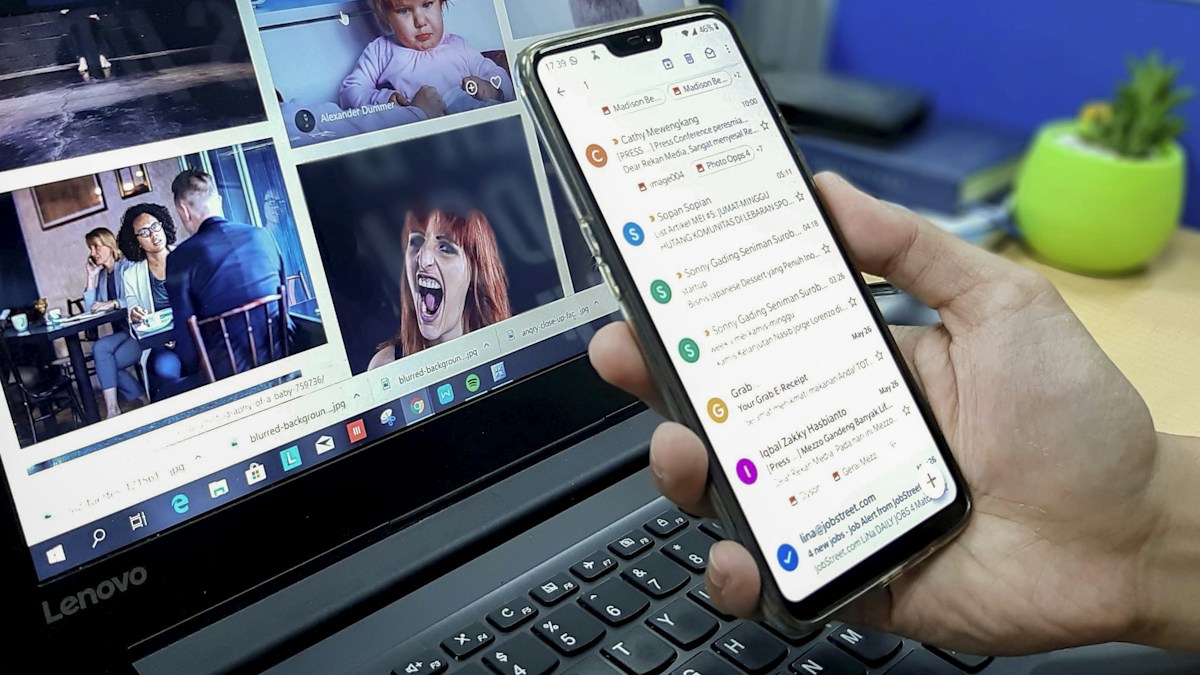
Source: Official Google instructions. Documentation checked October 19, 2026. Featured photo is illustrative, not an application screenshot.